
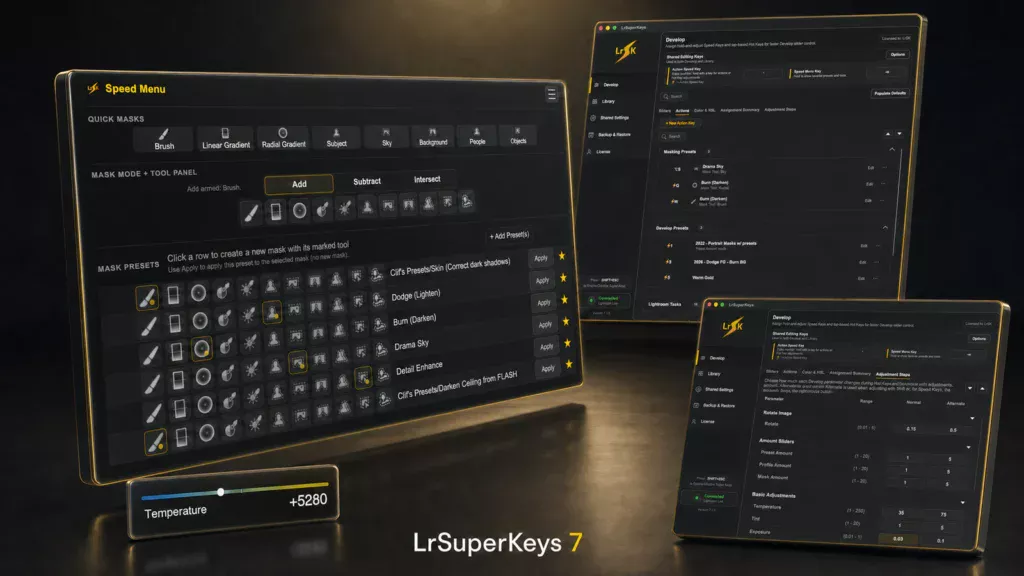
LrSuperKeys 7
LrSuperKeys 7 is rebuilt to give photographers more control with fewer interruptions.
LrSuperKeys 7 brings a rebuilt app foundation, native Apple silicon support, automatic pausing while typing in Lightroom text fields and dialogs, Library Quick Develop support, clearer HSL/HUD feedback, and easier setup backup and transfer.
21-day trial | macOS + Windows | Built for Lightroom Classic | Existing users can try v7 before renewing
21-day trial
macOS + Windows
Native Apple silicon support
Lightroom Classic
No external hardware required
Now available
LrSuperKeys 7 is rebuilt on a modern foundation.
Compared with v6, LrSuperKeys 7 brings a rebuilt cross-platform app experience, native Apple silicon support, automatic pausing while you type in Lightroom text fields and dialogs, support for Library Quick Develop adjustments, a more capable Speed Menu, clearer HSL and HUD feedback, and easier assignment backup and transfer.
It also includes smaller improvements throughout the app that reduce setup friction, improve reliability, and make everyday editing tasks easier to manage.
Why v7 matters
Faster access to the Lightroom Classic controls you use all day.
LrSuperKeys is built for the small interruptions that add up during long Lightroom Classic edits: adjusting sliders, switching tools, finding presets, choosing masks, tuning color, and managing your key setup.
Typical Lightroom friction
- Click into panels and find the right slider.
- Switch tools, masks, and presets by menu hunting.
- Leave the image to make repeated corrections.
- Manually disable LrSuperKeys before typing in Lightroom fields.
With LrSuperKeys 7
- Hold a Speed Key and adjust with scroll or drag.
- Use Hot Keys and Action Keys across more of Lightroom Classic.
- Reach favorite presets, masks, and tools from Speed Menu.
- Use search, clearer conflicts, and Import/Export for setup.
- Type normally while LrSuperKeys pauses assigned keyboard actions.
What’s new in v7
A more capable LrSuperKeys for daily Lightroom Classic editing.
From Quick Develop support and automatic typing pauses to smarter preset handling and setup transfer, v7 improves the parts of LrSuperKeys photographers use throughout a real edit.
Platform
Modern macOS and Windows app foundation
v7 uses a shared app and UI foundation for a more consistent experience across macOS and Windows, with cleaner startup and better background behavior.
Mac
Native Apple silicon support
On Apple silicon Macs, LrSuperKeys 7 runs natively instead of relying on Rosetta, improving the Mac compatibility path for future macOS releases.
Typing
Automatic pausing while typing
LrSuperKeys 7 pauses assigned keyboard actions while you type in Lightroom text fields, dialogs, search fields, and rename boxes, so typing behaves normally without manually disabling the app.
Library
Speed Keys and Hot Keys for Quick Develop
LrSuperKeys 7 adds Speed Key and Hot Key support for Lightroom Classic’s Library Quick Develop controls.
Adjustments
More flexible Hot Key assignments
LrSuperKeys 7 expands Hot Keys beyond single-key assignments, so you can create combinations like Ctrl+Shift+S and build shortcuts that better fit the way you edit.
Adjustments
Right-click alternate Speed Key adjustments
In addition to using Shift for alternate change values, LrSuperKeys 7 lets you hold the right mouse button while adjusting a Speed Key to temporarily switch to the alternate value.
Speed Menu
Speed Menu remembers masking tools
For favorite masking presets, Speed Menu can now remember the last masking tool you used with each preset, making repeated mask-and-preset workflows easier to return to.
Masking
Configurable local mask remapping
Keep the familiar v6-style masking remap behavior, or turn it off and assign masking sliders separately for a more customized local adjustment setup.
Actions
Expanded Library and Develop Action Keys
Action Keys now cover both Library and Develop workflows, including new Develop actions for Lightroom’s Distraction Removal tools.
Develop Presets
More resilient preset assignments
If a Lightroom develop preset changes, LrSuperKeys 7 can automatically scan and relink the Develop preset Action Key when a match is found, only asking you to repair the assignment if the preset cannot be found.
Develop Presets
Preset Amount Slider Mode
Enable Preset Amount Slider Mode on individual Develop preset Action Keys to automatically open the preset amount HUD after applying that preset, so you can adjust its strength right away.
Speed Menu
Denser favorite preset and mask access
Speed Menu now uses a tighter Lightroom-style layout, remembers the last masking tool per favorite preset, supports customizable Quick Masks buttons, and makes adding favorites easier with searchable grouped preset selection.
HSL + HUD
Cursor-based HSL and clearer feedback
HSL now supports cursor-based Color Picker behavior, Interactive mode can appear at the cursor, and updated HUD/HSL palettes make adjustment feedback easier to read.
Setup
Search, clearer conflicts, and Import/Export
Find assignments and settings across Speed Keys & Hot Keys, Action Keys, and Configuration. Export Speed Keys + Hot Keys, Action Keys, or a full Settings Profile Bundle for backup or transfer.
Important for Mac users
v7 is the Apple silicon compatibility upgrade for LrSuperKeys.
If you use LrSuperKeys 6 or earlier on an Apple silicon Mac, the older app depends on Apple’s Rosetta translation layer. LrSuperKeys 7 runs natively on Apple silicon, removing that dependency for LrSuperKeys and giving Mac users a better compatibility path as Apple continues moving the Mac platform toward Apple silicon-native apps.
- Native Apple silicon support on modern Macs.
- A universal macOS release path instead of an Intel-only app path.
- Better future compatibility as macOS and Mac hardware continue moving toward Apple silicon-native software.
Existing users
Already own LrSuperKeys?
Your current license still works with the versions it supports. LrSuperKeys 7 gives existing users a clear path based on updates/support status.
Included
Active updates/support
If your updates/support period is active, LrSuperKeys 7 is included. Download the latest version and keep editing.
Try first
Updates/support ended
If your updates/support period has ended, install LrSuperKeys 7 and test it for 21 days. Renew only if v7 earns a place in your real Lightroom Classic workflow.
Try it first
Test LrSuperKeys 7 in your real Lightroom Classic workflow.
Download v7 and run it through a real edit: adjust, launch favorites, fine-tune color, trigger repeated actions, and back up your setup once it feels right.
21-day trial | macOS + Windows | Requires Lightroom Classic
Questions
Common questions about LrSuperKeys 7.
Is LrSuperKeys 7 a free update?
LrSuperKeys 7 is included if your updates/support period is active. If your updates/support period has ended, you can try v7 for 21 days before renewing.
Can I try LrSuperKeys 7 before buying or renewing?
Yes. LrSuperKeys 7 includes a 21-day trial so you can test it in your real Lightroom Classic workflow before deciding.
What if my updates/support period has ended?
Your existing license still works with the versions it supports. You can install LrSuperKeys 7, test the 21-day trial, and renew updates/support only if you want to keep using v7.
Why does v7 matter for Apple silicon Macs?
LrSuperKeys 6 and earlier require Rosetta on Apple silicon Macs. LrSuperKeys 7 runs natively on Apple silicon, which gives Mac users a better compatibility path as Apple continues moving the Mac platform toward Apple silicon-native apps.
Is LrSuperKeys 7 still for Lightroom Classic?
Yes. LrSuperKeys 7 is built for Lightroom Classic workflows on macOS and Windows.
Do I need external hardware?
No. LrSuperKeys gives your keyboard, mouse, or trackpad hardware-like Lightroom control without requiring a separate control surface.
What should I test during the trial?
Test it during a real edit. Try Speed Keys for adjustments, Action Keys for repeated commands, Speed Menu for favorites, HSL/HUD feedback for color work, and Import/Export for setup backup.