
Crop a little tighter, adjust the color in the highlights, or look up a forgotten shortcut. LrSuperKeys 7.5.0 adds crop controls, Color Grading Speed Keys, and Shortcut Guide to your Lightroom Classic setup.
Reframe a photo from the Crop Tool Panel
Hold your assigned Crop Speed Key to show the controls. Move toward the edge or corner you want to adjust, then click-drag. Your pointer does not need to reach the crop handle.
Use the upper center control to pan with a drag or zoom with the scroll wheel. Use the lower center control to rotate. Choose Crop Panel at your pointer or Crop Overlays on screen, and release the key when you finish.
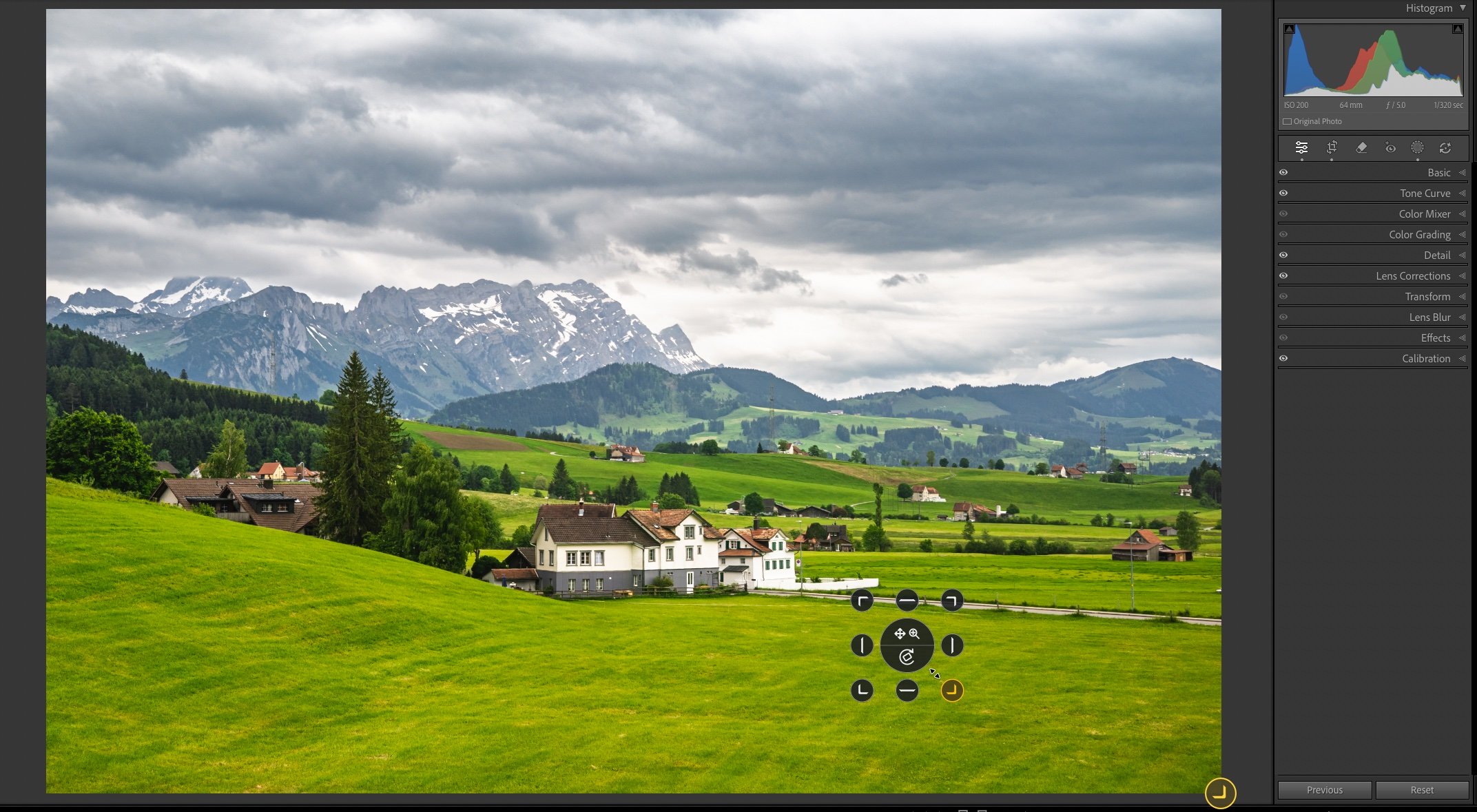
See Crop Overlays
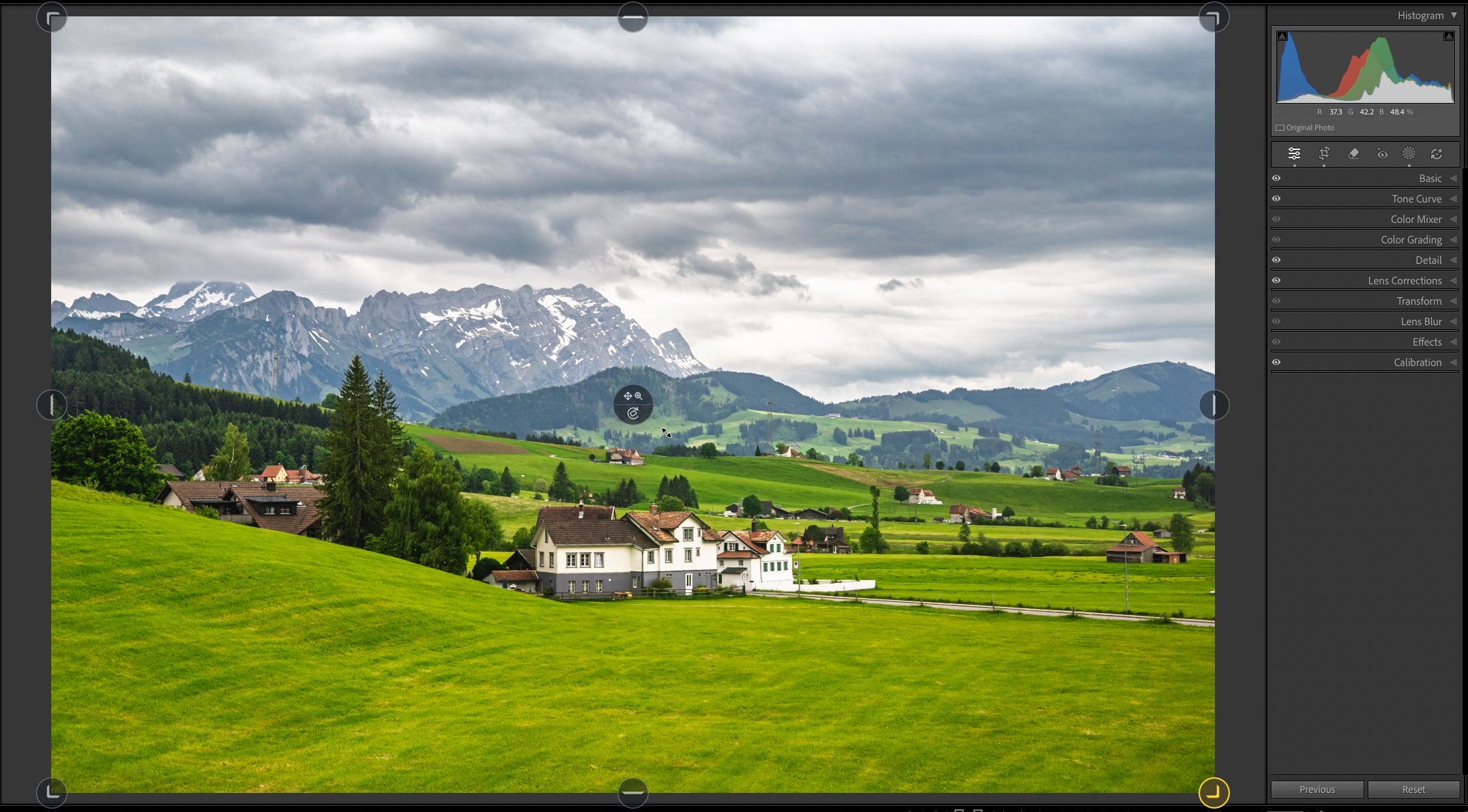
Watch Crop Panel and Crop Overlays
Hold your Crop Speed Key, move toward an edge or corner to select it, then click-drag. Your pointer does not need to reach the crop handle. Release the key when finished.
Tighten the crop with Zoom Crop
Hold your assigned Zoom Crop Speed Key and scroll to resize the crop around its current center, keeping the aspect ratio. Use it when the framing is right and you want a tighter or looser crop.
Find Center Zoom In Crop under Develop > Sliders > Rotate & Crop to check or change its assignment.
Watch Zoom Crop
Give each Color Grading range a key
In Develop > Color Grading Panel, assign keys for Shadows, Midtones, Highlights, and Global. Hold a range’s key and move horizontally for hue, vertically for saturation, or scroll for luminance.
For example, adjust the shadow color, then hold your Highlights key to work on the brighter areas. If Require mouse down is enabled, click-drag to change hue or saturation. Your individual Color Grading slider assignments remain available.
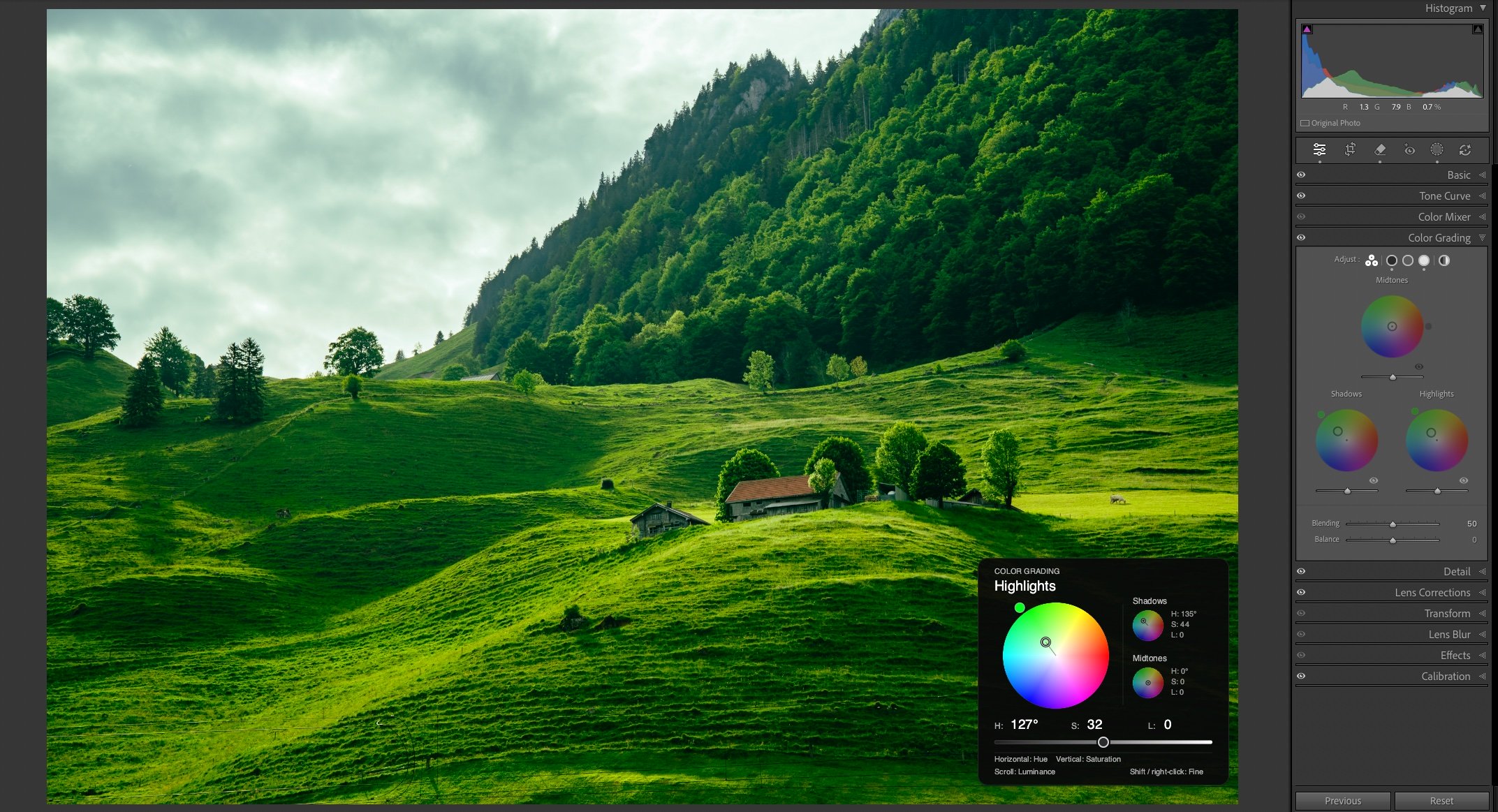
Find the shortcut you need
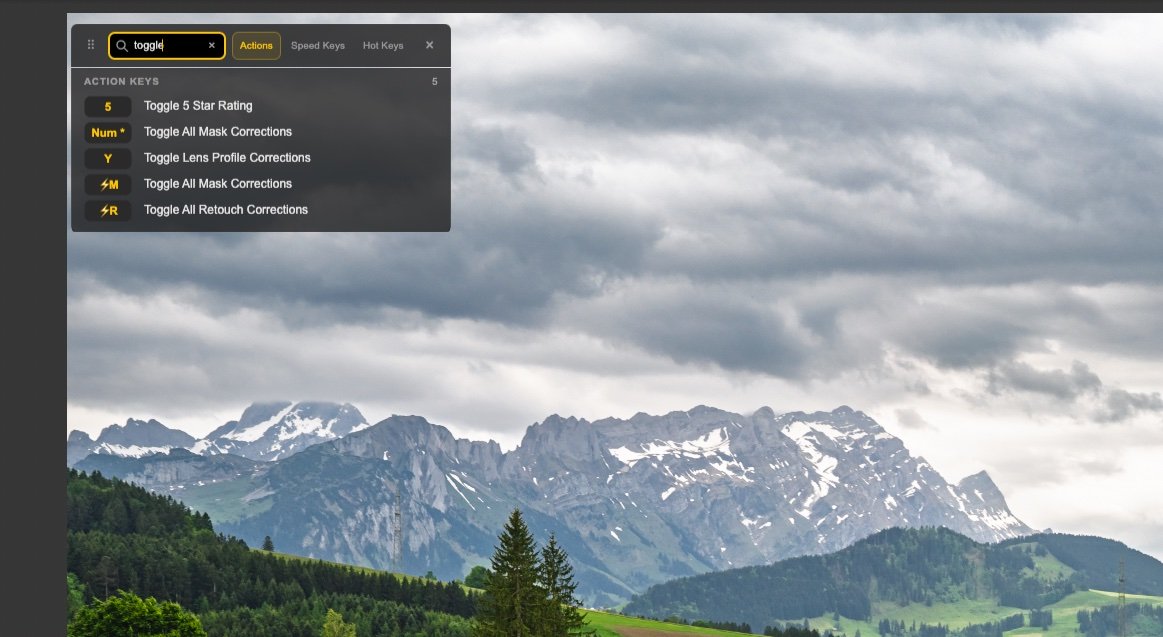
Shortcut Guide shows your assigned Action Keys, Speed Keys, and Hot Keys while you edit. Search for a command to narrow the list. Longer lists use pages, so assignments remain accessible when they do not all fit on screen.
Fixes for everyday use
Assignment saves retain the previous valid file, and a failed Action Key save keeps your active bindings intact. Reconnection fixes help LrSK and the Classic plugin reconnect after either app restarts. macOS includes Accessibility recovery fixes; Windows fixes the Speed Menu key toggling Lightroom’s panels during its first reveal.
Does your license cover 7.5.0?
If you regularly crop and grade photos, start with those two controls. Shortcut Guide is there when you need a reminder of your assignments.
Your license covers releases built on or before its support end date. If 7.5.0 is covered, no renewal is needed. For a newer release outside your coverage, an optional support renewal is currently $35. You can keep using the releases your license already covers.
Download LrSK. See the license details before renewing. A 21-day trial is available if eligible.