
Make your first edit with LrSuperKeys.
Hold your Exposure key and scroll to brighten or darken a photo in Lightroom Classic.
For Lightroom Classic on macOS and Windows.
Already installed? Try your first adjustment →
1. Get ready
- Install LrSuperKeys. The installer includes the Lightroom Classic plugin.
- Open LrSuperKeys and Lightroom Classic. LrSK needs to stay running while you edit.
- Select a photo in Develop. Close dialogs, finish typing, and leave no mask selected.
macOS: allow Accessibility access
When asked, allow LrSuperKeys in System Settings > Privacy & Security > Accessibility.
2. Hold your Exposure key and scroll
The starting Exposure key is Q. If you have changed your assignments, use your saved key.
Check your Exposure key
In LrSuperKeys, open Develop > Sliders and find Exposure. Use the key shown in its Speed Key column.
- Bring Lightroom Classic to the front and hold your Exposure key.
- Keep the key held and scroll a little.
- Watch the photo and Exposure value change, then release the key.
Once Exposure changes, you’ve made your first Speed Key adjustment. Try the same gesture on your next photo.
Use Lightroom’s Undo if you want to reverse the practice adjustment.
Need a hand?
The photo does not change
Check that LrSuperKeys is running and enabled, and Lightroom is active in Develop. Close dialogs and finish text entry. On macOS, check Accessibility access.
My key does something else
Check your Exposure Speed Key in LrSuperKeys > Develop > Sliders. Hold that key while scrolling; a short tap can still run another shortcut.
Exposure changes, but no overlay appears
Your adjustment is working. To show the overlay, turn on General Settings > Adjustment Overlay > Show adjustment overlay in LrSuperKeys.
Contact support with your app version, Lightroom Classic version, operating system, and the step that failed.
Find your other keys
Open Shortcut Guide
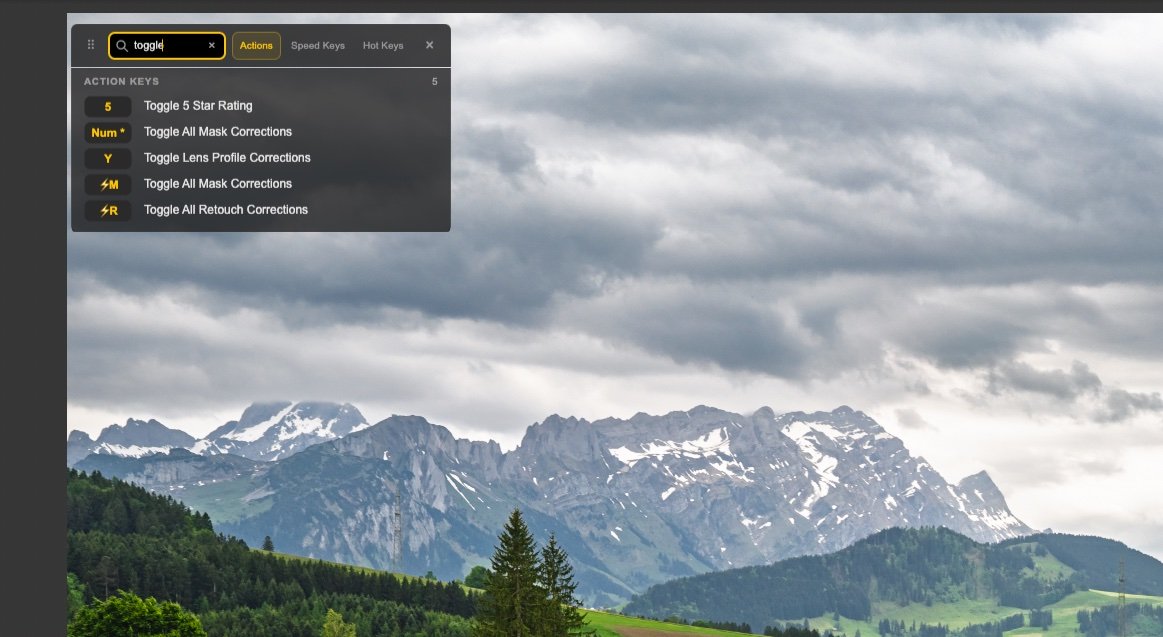
In LrSuperKeys, open General Settings > Shortcut Guide and turn on Show Shortcut Guide. Return to Lightroom to see your current module’s assignments.
Search to narrow the list. This example shows a search for toggle in Action Keys.
Choose what to learn next
- Learn Speed Menu — choose masking tools and favorite presets.
- Set up Action Keys — run a command or preset.
- Set up Hot Keys — increase or decrease an adjustment with a tap.
- Learn the Crop Tool Panel — resize, pan, zoom, and straighten.