
Crop Tool Panel
Tighten the framing, reposition the photo, or straighten the crop while holding one key.
For Lightroom Classic on macOS and Windows.
On this page: Choose a mode · Find your key · Resize · Pan, zoom, rotate · Help
Two ways to show the controls
- Crop Panel: a compact panel opens at your pointer.
- Crop Overlays: handles appear around the photo or screen, with pan/zoom and rotate in the center.
Choose Cropping mode in Develop > Crop Tool Panel. Both use the same Speed Key and gestures. The steps below start with Crop Panel.
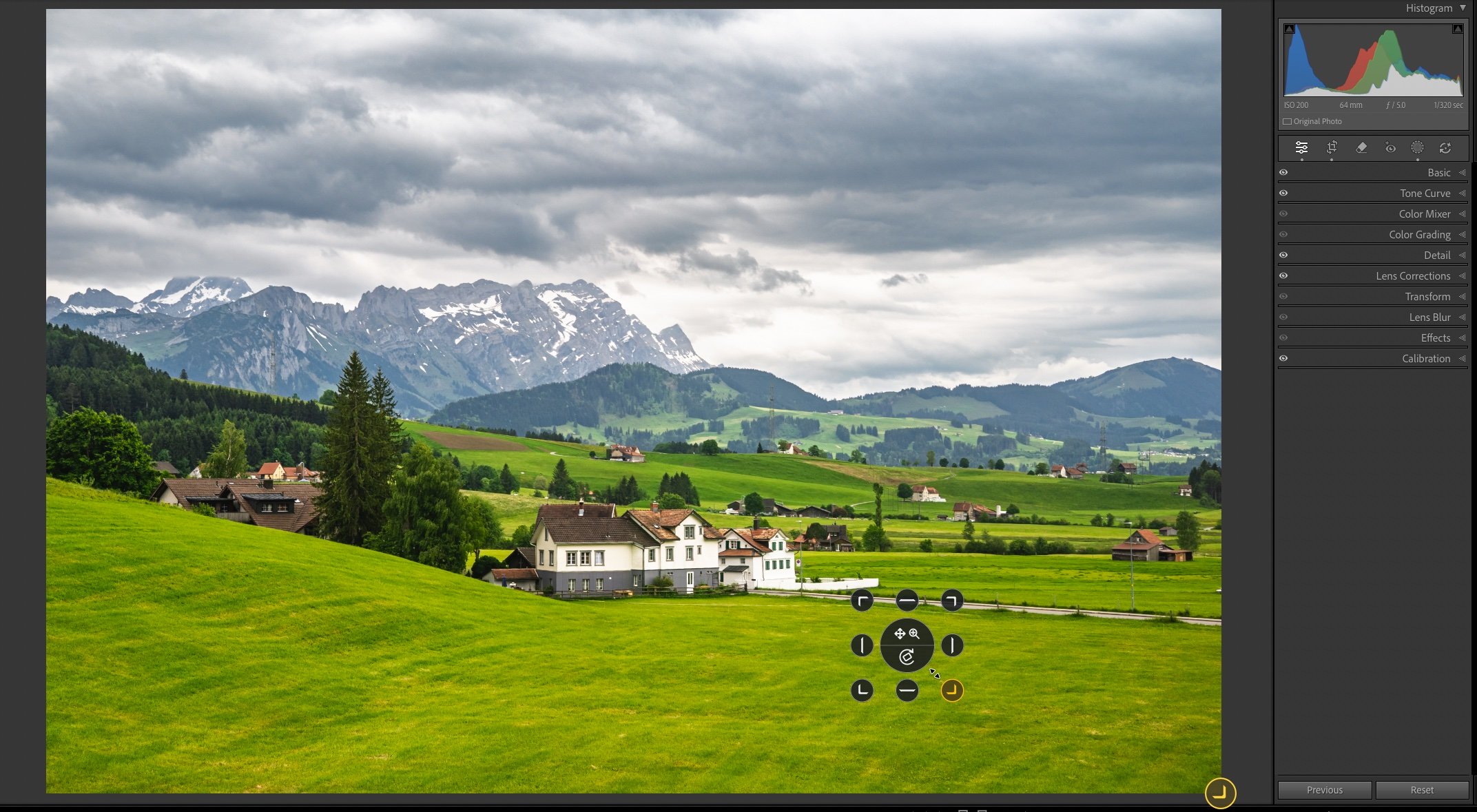
See Crop Overlays
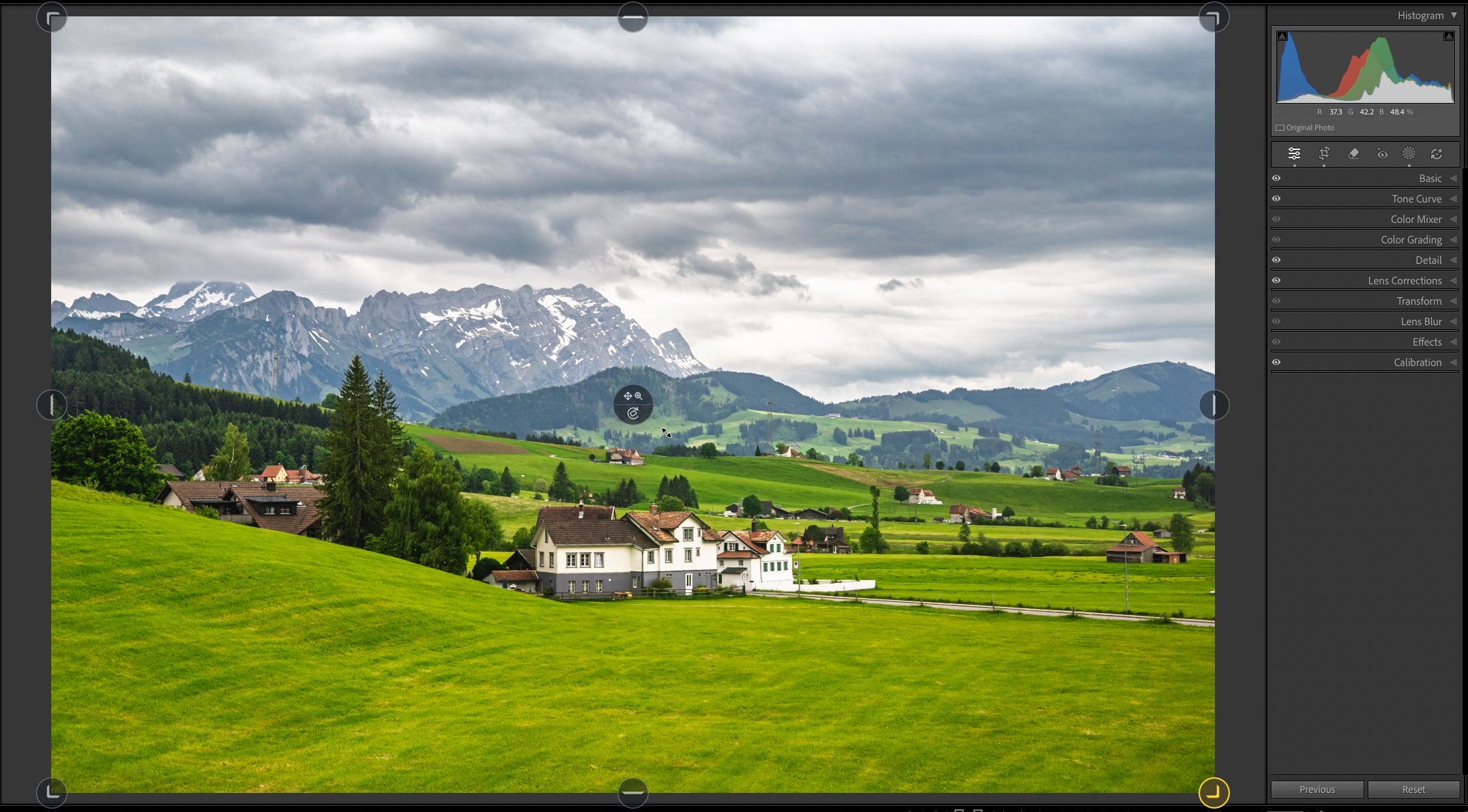
Watch Crop Panel and Crop Overlays
Hold your Crop Speed Key, move toward an edge or corner to select it, then click-drag. Your pointer does not need to reach the crop handle. Release the key when finished.
1. Find your Crop Speed Key
In LrSuperKeys, open Develop > Crop Tool Panel. Check your Speed Key and choose Crop Panel under Cropping mode.
The fresh-install key is Spacebar. Existing assignments may differ. Open a photo in Lightroom’s Develop module.
2. Resize your crop
- Bring Lightroom to the front and hold your Crop Speed Key.
- Move toward an outer edge or corner on the panel to select it.
- Hold the left mouse button and drag. The current aspect ratio is preserved.
- Release the mouse button, then release the key.
Move in the general direction of the edge or corner to select it; you do not need to move the pointer onto the handle. Pointer movement alone does not adjust the crop. The target stays locked while you drag.
3. Pan, zoom, or rotate
Keep the Crop Speed Key held and select a center control:
- Upper half: click-drag to pan; scroll to zoom.
- Lower half: click-drag or scroll to rotate.
Release the key when finished. Undo an unwanted change in Lightroom.
Panel settings
Panel size and starting control
In Develop > Crop Tool Panel, adjust Panel size or choose Starting center control: Pan/Zoom or Rotate.
Show Lightroom’s crop frame
The default Keep current tool active adjusts the crop without opening Lightroom’s Crop tool. Choose Open Crop tool automatically if you prefer the frame visible.
Crop Overlays
Choose Crop Overlays under Cropping mode to show handles on screen instead of the compact panel. The same key and gestures apply. Crop Panel can also show an optional active-handle indicator.
Troubleshooting
Nothing appears or adjusts
Check LrSuperKeys is running and enabled, Lightroom is active in Develop, and no text field or dialog is open. Hold your assigned Crop Speed Key. Select a target, then drag with the left button, scroll, or use arrow keys.
Reset the crop
If Double-click to reset is enabled, double-click a target to reset the entire crop. To reverse only the last change, use Lightroom’s Undo.
Contact support with your app version, Lightroom Classic version, operating system, and the step that failed.