
Speed Keys
Hold an assigned key while scrolling, click-dragging, or using arrow keys to adjust a Lightroom Classic slider.
For Lightroom Classic on macOS and Windows.
New to LrSK? Start with installation and your first Exposure adjustment →
On this page: Assign a key · Adjust · Settings · Color Grading · Find your keys · Help
1. Choose a slider and assign a key
In LrSuperKeys, open Develop > Sliders. Choose an adjustment you use often, such as Exposure or Contrast.
- Find its Speed Key · Hold column. An existing key is ready to use.
- To assign or change it, click the key field and press your chosen key.
- Check the key shown in the row. If LrSK reports a conflict, choose another key.
Start with one or two adjustments. Your saved assignments are kept when you upgrade.
2. Hold the key and adjust
Select a photo in Lightroom Classic’s Develop module. Keep Lightroom active, finish typing, and close any dialogs. For your first test, leave no mask selected.
- Scroll: hold the Speed Key and scroll with your mouse or trackpad.
- Click-drag: hold the Speed Key, hold the left mouse button, and drag.
- Arrow keys: hold the Speed Key and press Left or Right.
Release the Speed Key when finished. The photo and adjustment value should change; the pointer does not need to be over the slider.
What happens if I tap the key?
A short tap normally passes the key to Lightroom. If an LrSK Action Key or Hot Key shares that binding in the same module, the tap uses that assignment. Holding the key activates its Speed Key adjustment.
Adjustment settings
Change the adjustment amount
Open Develop > Adjustment Steps and find the slider. Set its Normal and Alternate amounts. While adjusting a standard slider, hold Shift or the right mouse button to use the alternate amount. General Settings > Input & Mouse > Flip Alternate values swaps which amount is used.
Adjust with pointer movement alone
Under General Settings > Input & Mouse, turn off Require mouse down to adjust by moving the pointer while holding a Speed Key. With it on, hold the left mouse button while moving. Crop handles always require click-drag.
Reset an adjustment
Under General Settings > Input & Mouse, enable Double-click to reset or Middle-click to reset. Hold the slider’s Speed Key and use the enabled gesture to reset it. Use Lightroom’s Undo to reverse only the last change.
Use keys in Library or on a mask
Library uses separate assignments under Library > Quick Develop. Only the adjustments listed there are supported.
For masks, General Settings > Input & Mouse > Remap Speed Keys for masks lets regular Develop Speed Keys control matching mask sliders while a masking tool is active. Check the active mask before adjusting.
Adjust Color Grading
Assign a key to a tonal range to adjust its color without selecting individual sliders.
- Open Develop > Color Grading Panel in LrSuperKeys. Assign a Speed Key to Shadows, Midtones, Highlights, or Global.
- Return to Lightroom’s Develop module and hold that range’s key.
- Move horizontally for hue, vertically for saturation, or scroll for luminance. When Require mouse down is on, click-drag to change hue or saturation.
- Release the key to finish.
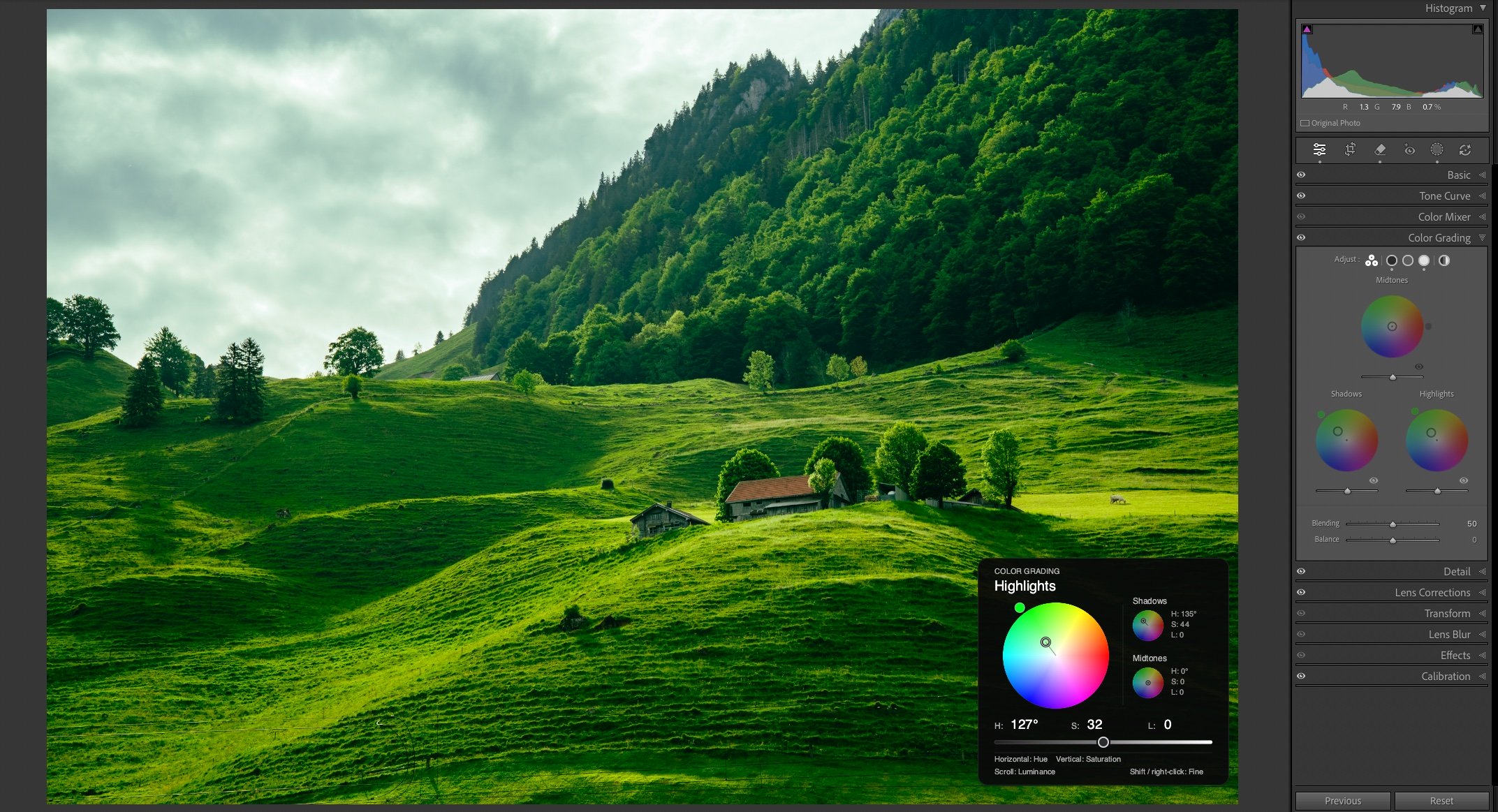
Fine control and keyboard adjustments
The panel follows one movement direction at a time; deliberately change direction to switch between hue and saturation. Left/Right arrows adjust hue; Up/Down adjust saturation.
For these Color Grading range keys, Shift or the right mouse button gives finer control. Flip Alternate values reverses that modifier behavior. Individual Color Grading sliders remain available under Develop > Sliders.
Find your keys while editing
Open General Settings > Shortcut Guide and turn on Show Shortcut Guide. Return to Lightroom to see assignments for the current module. Search to narrow the list, or use the pages to browse longer lists.
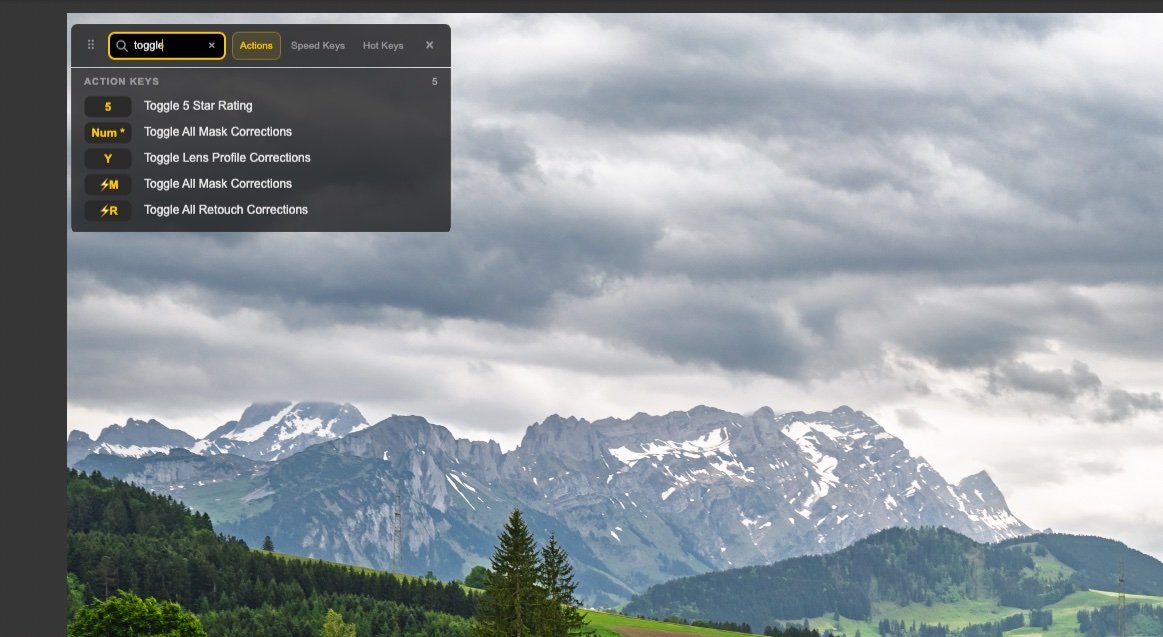
To change a slider’s Speed Key, return to its assignment in LrSuperKeys. For crop controls, use the Crop Tool Panel guide.
Troubleshooting
The key does something else
Check its assignment and module. Hold the Speed Key while adjusting; a quick tap can run a different shortcut. For general setup checks, follow the first-edit troubleshooting steps.
The adjustment works, but the overlay is hidden
Turn on General Settings > Adjustment Overlay > Show adjustment overlay. This also controls the Color Grading panel. A changing Lightroom value confirms the adjustment is working.